Aligning Magazines
For messing around with animations for weapons, you more than likely want to see where the magazine for your weapon is. Since weapons in Helldivers 2 can have different magazines, the weapon and the magazine are two separate rigs.
To view animations with a magazine, you will need to parent the magazine to the weapon's attach_mag bone. Here's the simplest method to do that:
Load both weapon and magazine, making sure to merge armatures off either in the settings or that you don’t have the rig selected when you import the other unit. You should see two separate armatures in the scene, one for the weapon and one for the mag.
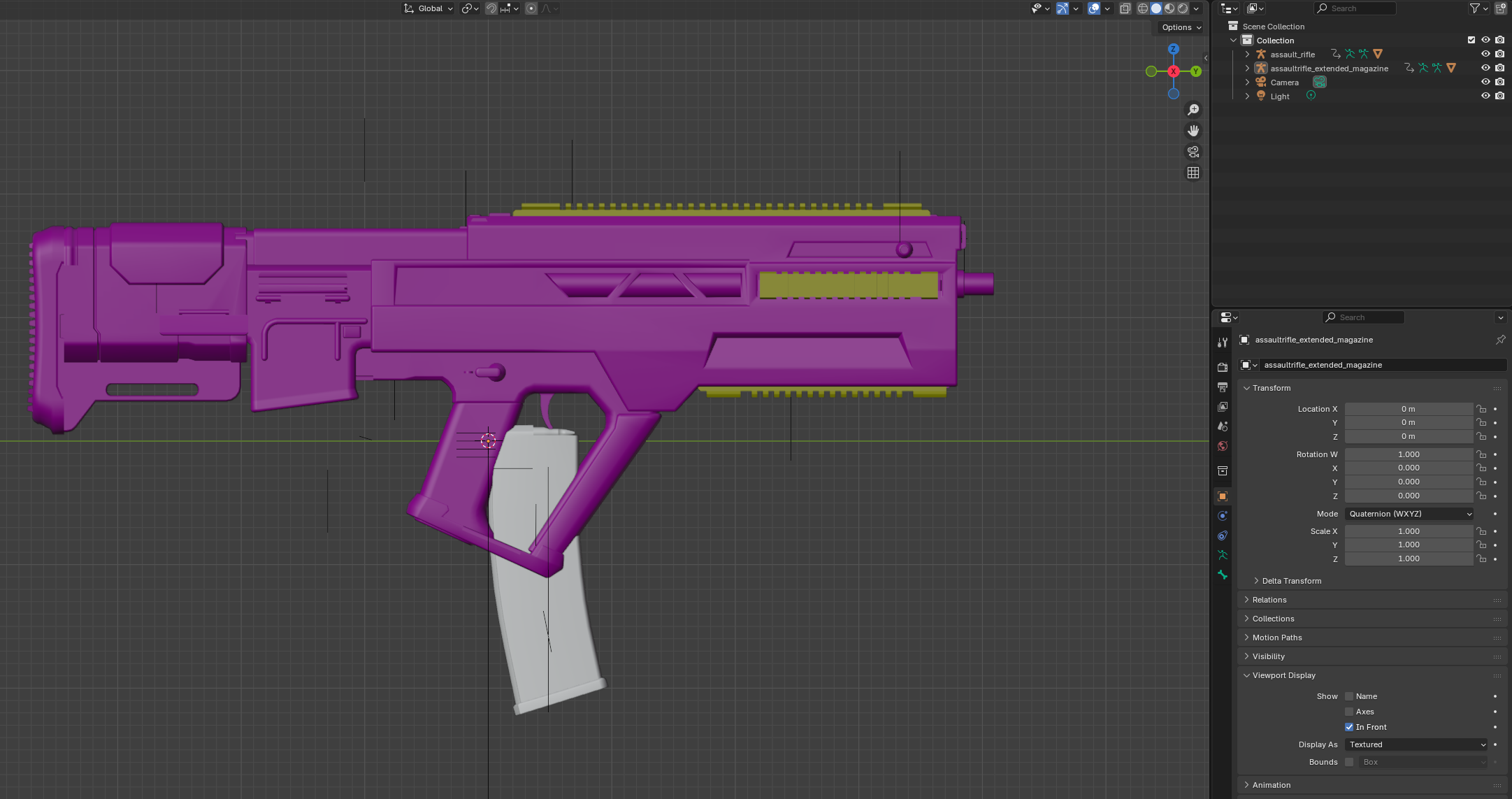
Select the magazine's armature.
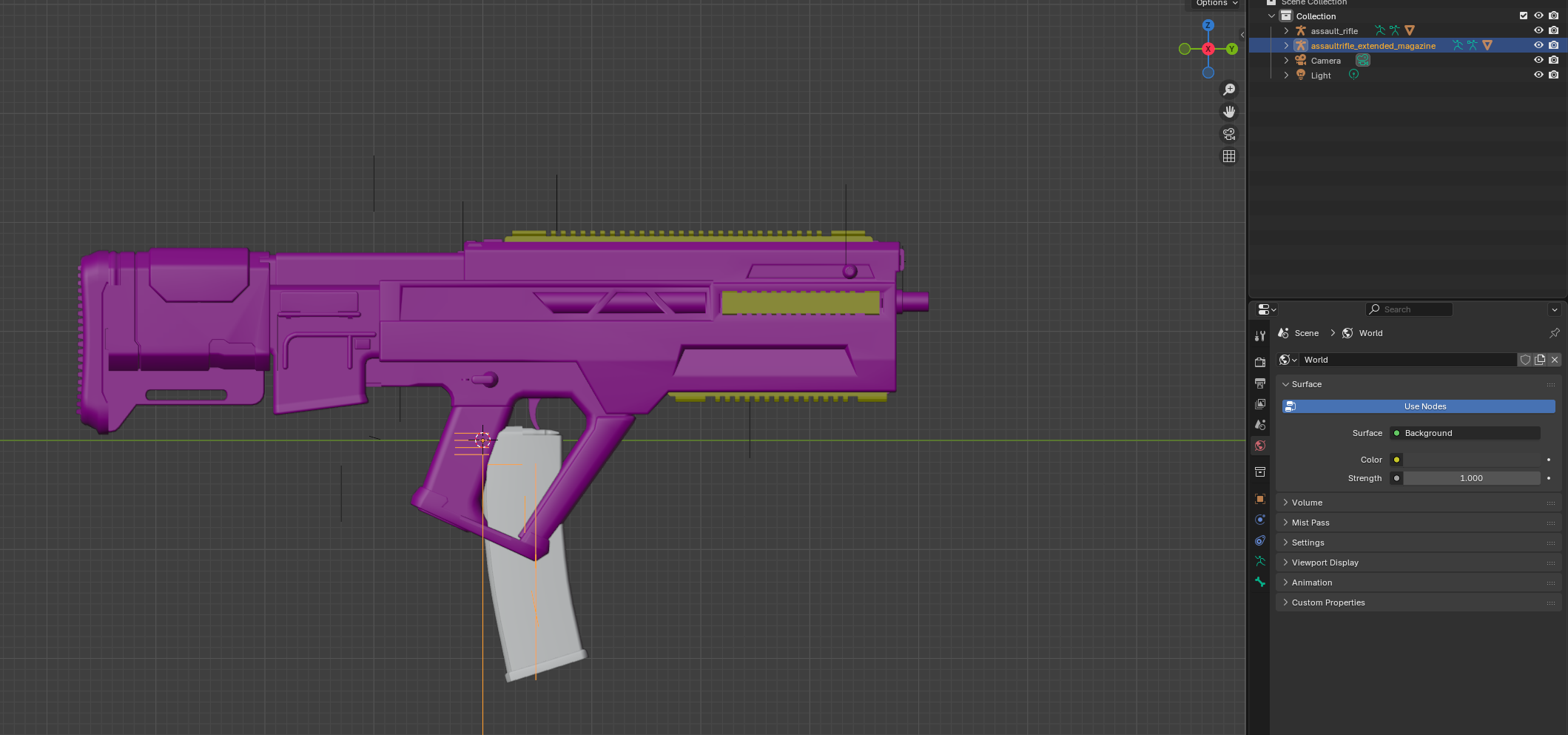
Navigate to the magazine's constraints tab.
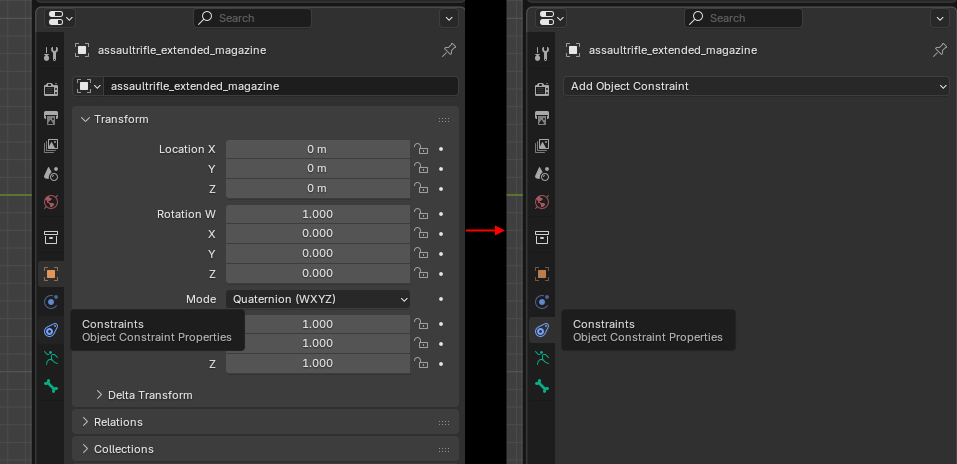
Click Add Object Constraint, and select Child Of.
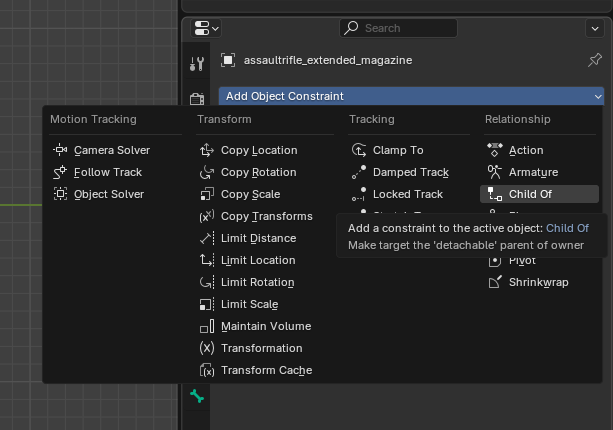
For the target of the Child Of constraint, select the weapon's armature.
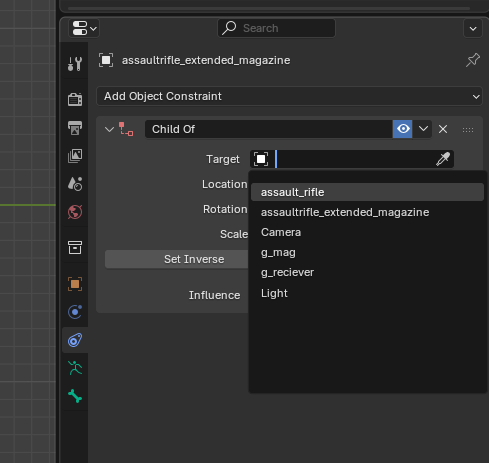
A sub-target labeled Bone will appear. In this drop down, select attach_mag.
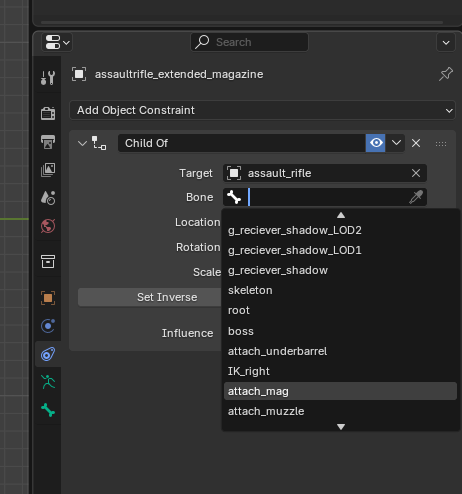
The magazine will move to the location of the attach_mag bone.
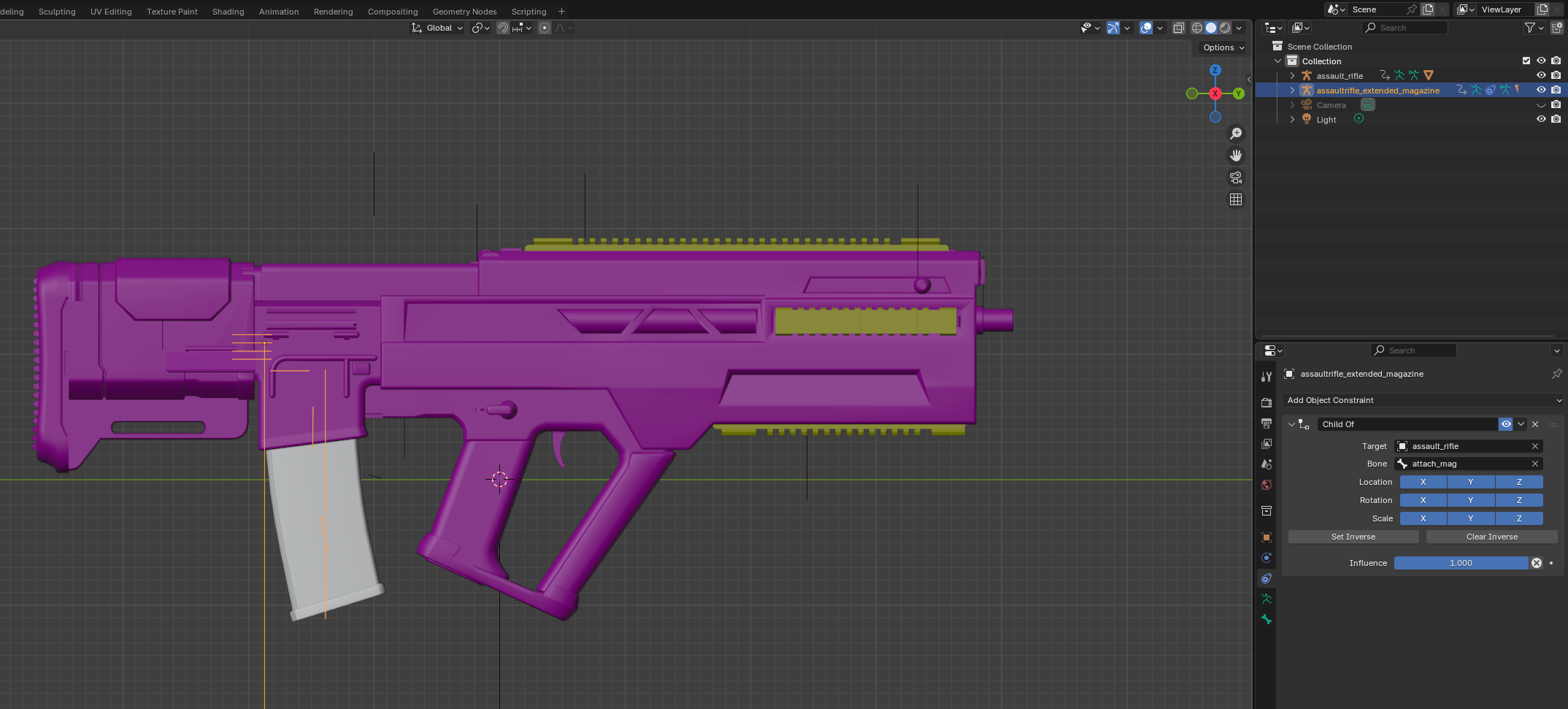
TIP
Sometimes the magazine will be rotated oddly, like here. 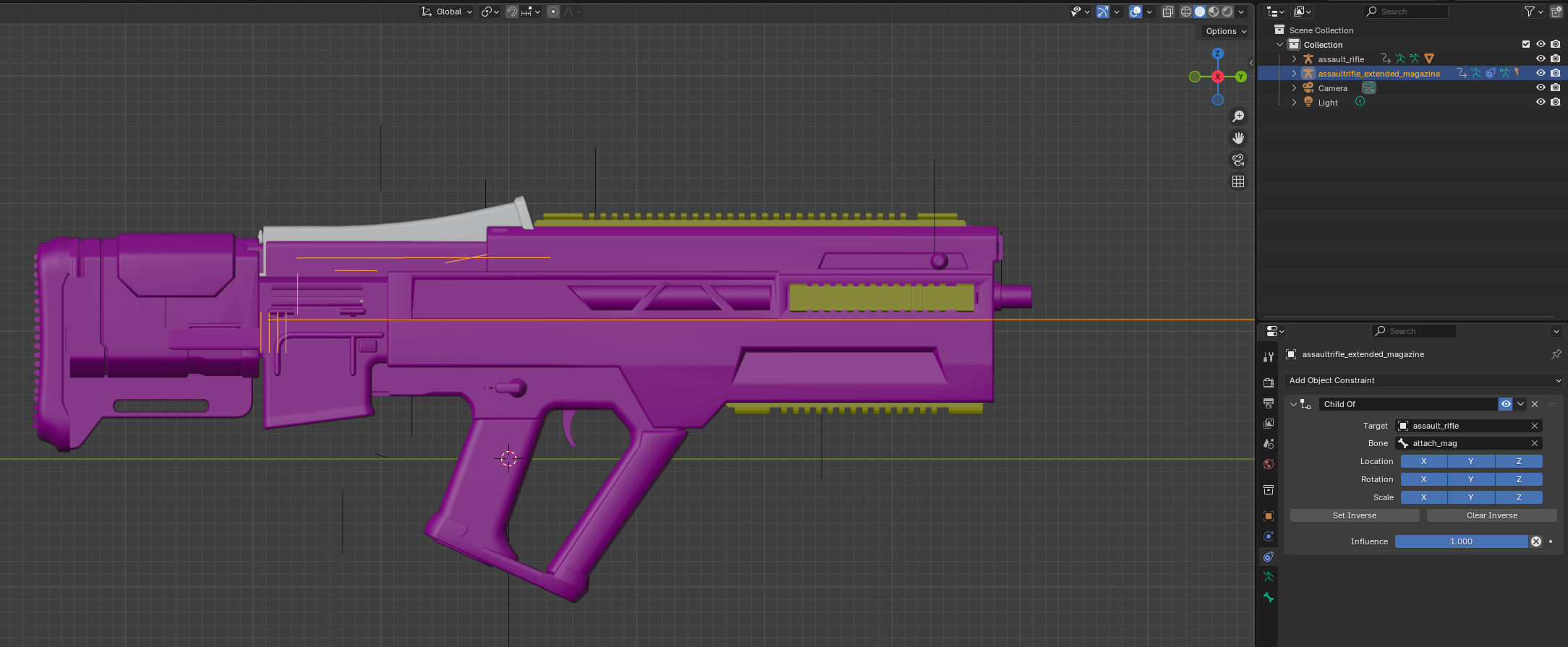
To fix the rotation:
Select the magazine's armature in the viewport and hit
RthenX. You will go into X-axis rotation mode, and you can rotate the magazine by either moving the mouse until it lines up, or by typing a specific angle in the viewport. You can confirm the rotation by left clicking or hittingEnter, and you can cancel by right clicking or hittingEsc.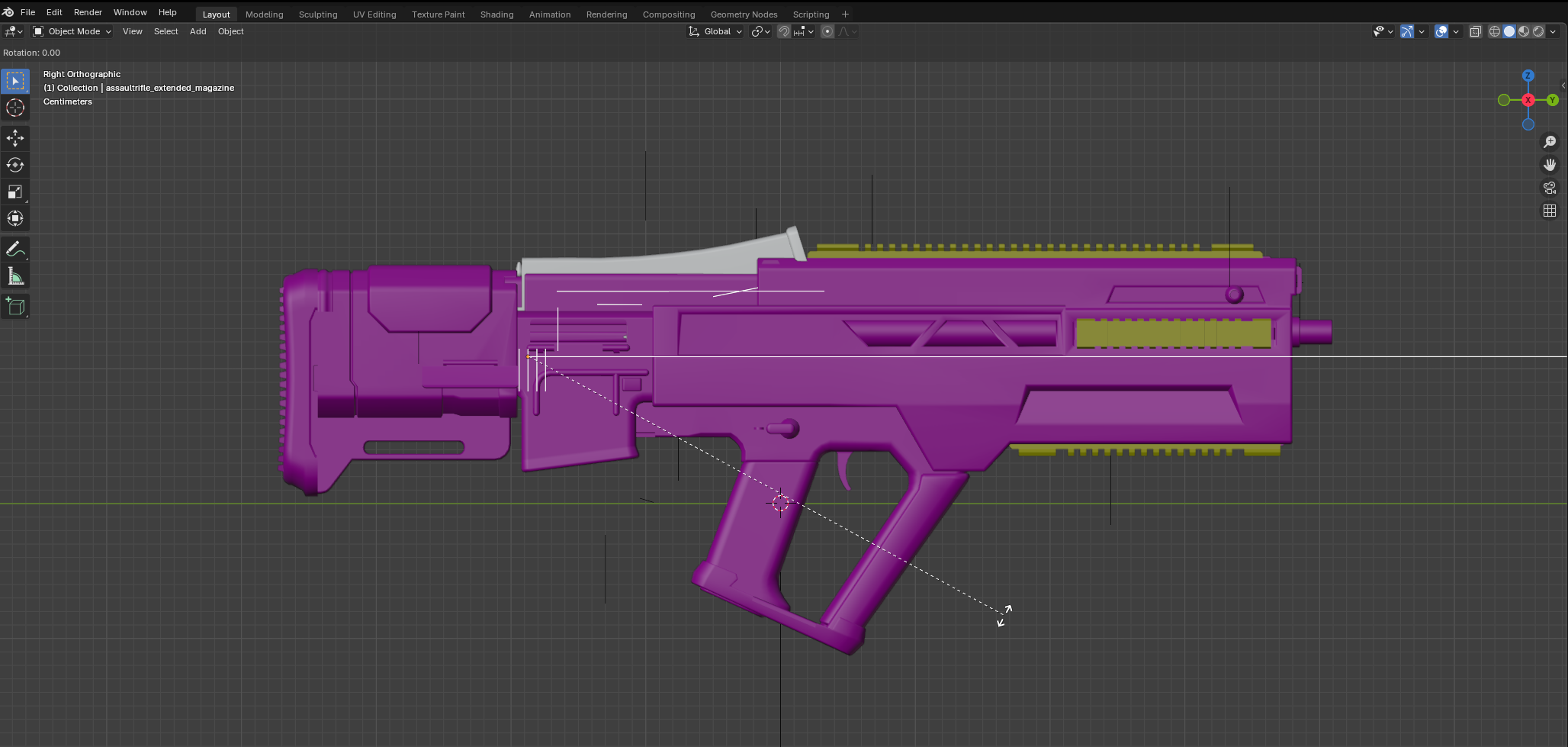
It is likely you need to rotate by 90 degrees in one direction or another, so you can type
90to be precise.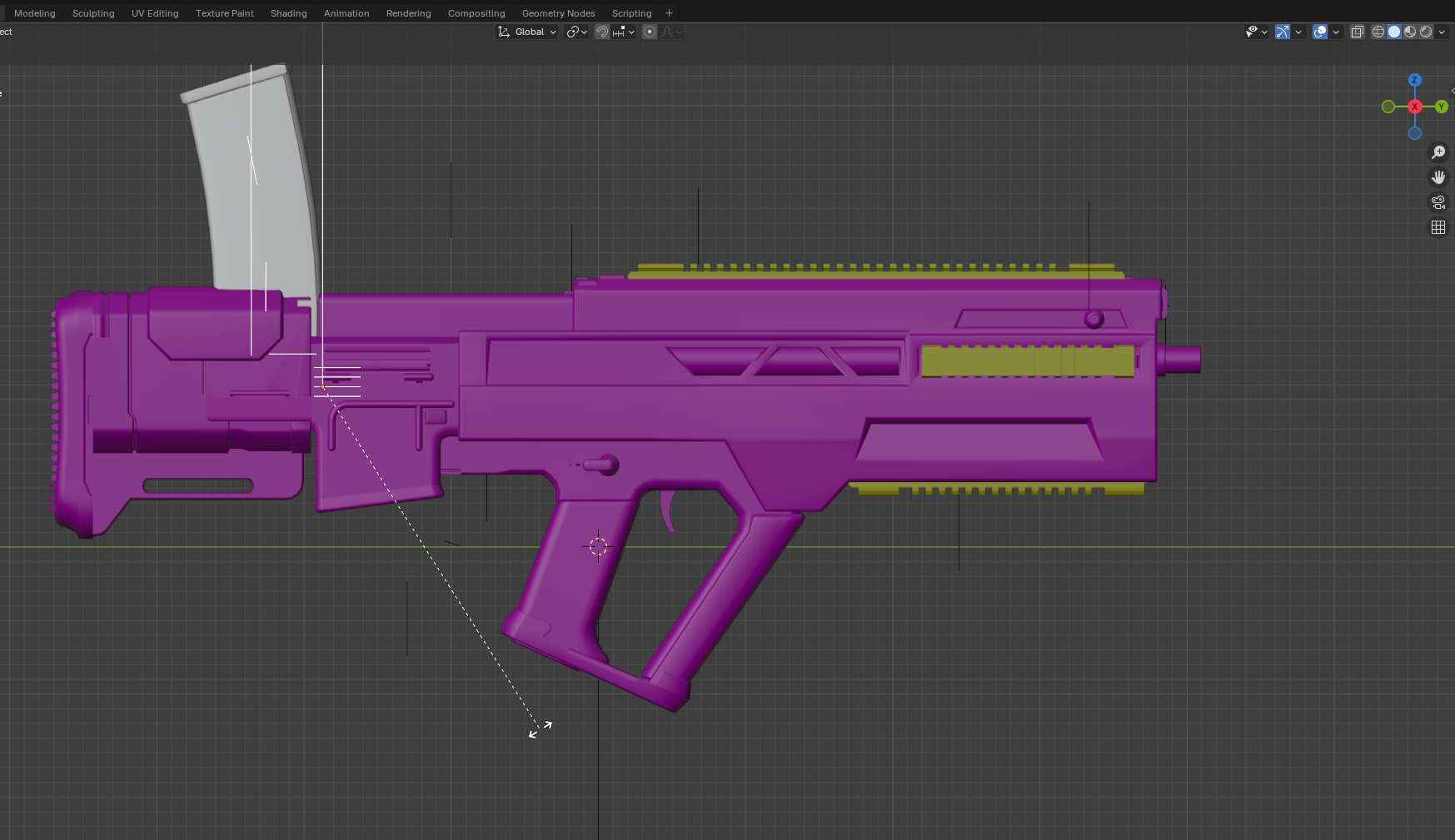
If the typed value is the wrong direction, you can hit the
-key to reverse the direction of rotation.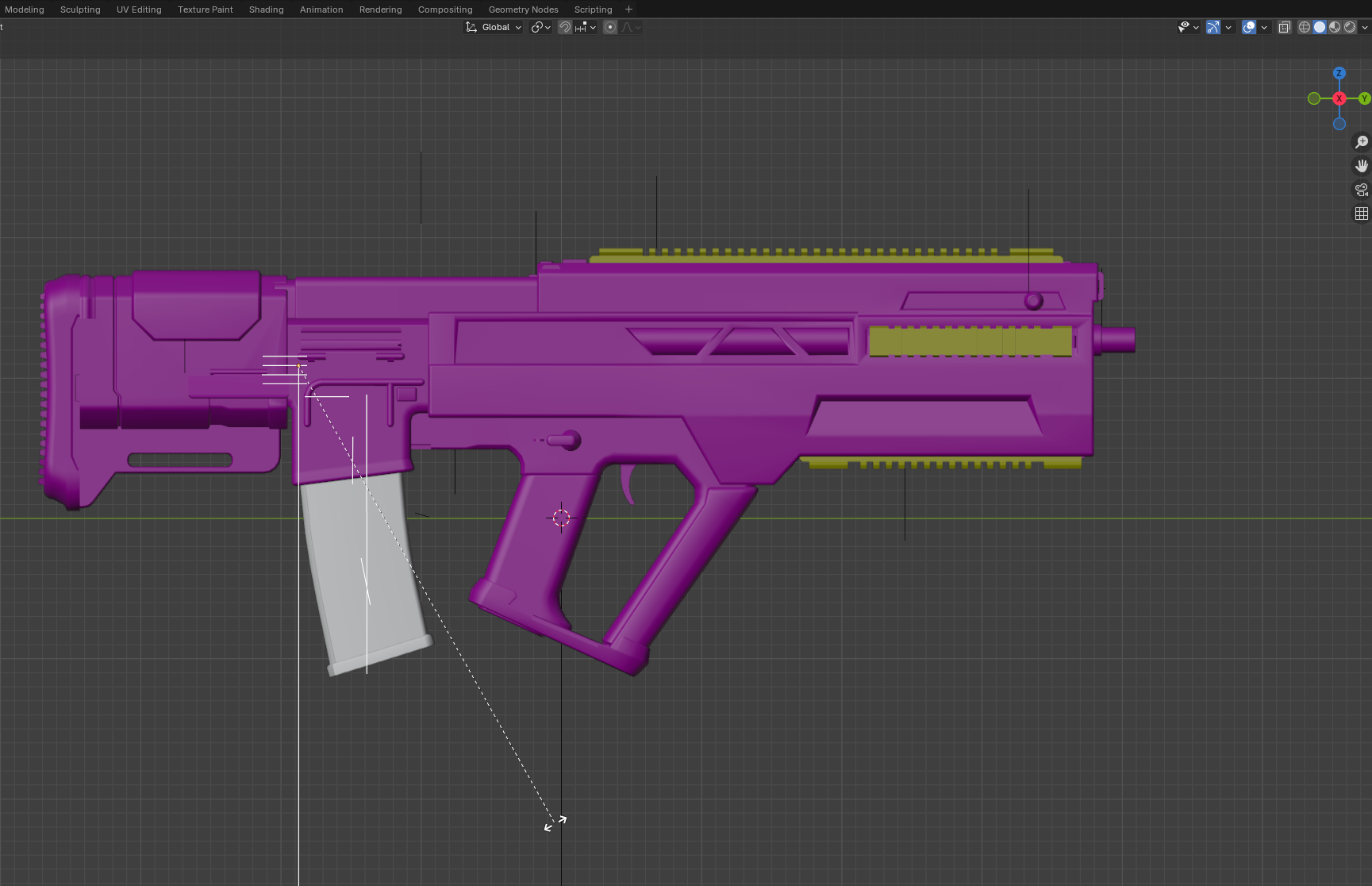
Finally hit
Enterto confirm the changes.