Settings
Display Types
Extra Entry Types
The SDK normally only displays texture, mesh, and material.
This setting will display additional resources such as particles and bones.
Useful for modders looking to change functions outside of model replacements.
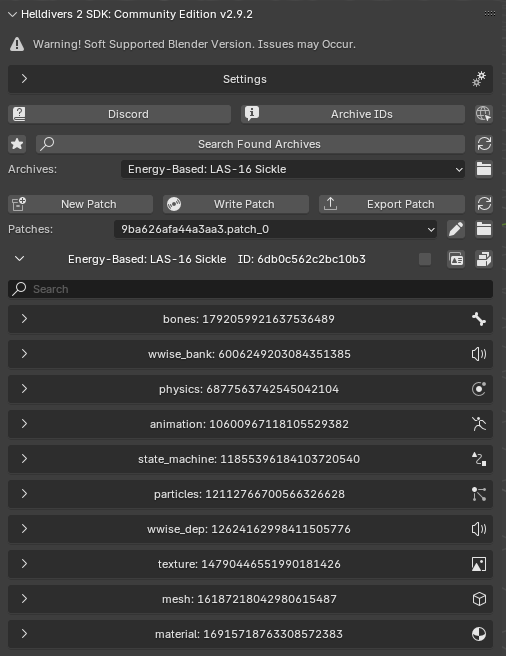
Show Friendly Names
Displays internal name of an item instead of numeric ID.
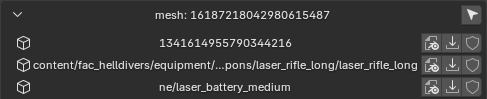
Import Options
Import Materials
Attaches materials to imported meshs
Important
This is enabled by default and should remain enabled
Import LODs
Imports all LODs Level of Detail of the mesh. LOD 0 being the highest quality and LOD ~8 being the lowest quality.
Most of the time you will not need to use this setting, however, some game meshs have different functions in different LODs.
An example of this is the Senator Pistol.
LOD 0 through LOD 8 are the Senator LODs, while LOD 9 and LOD 10 are the reloading bullet LODs.
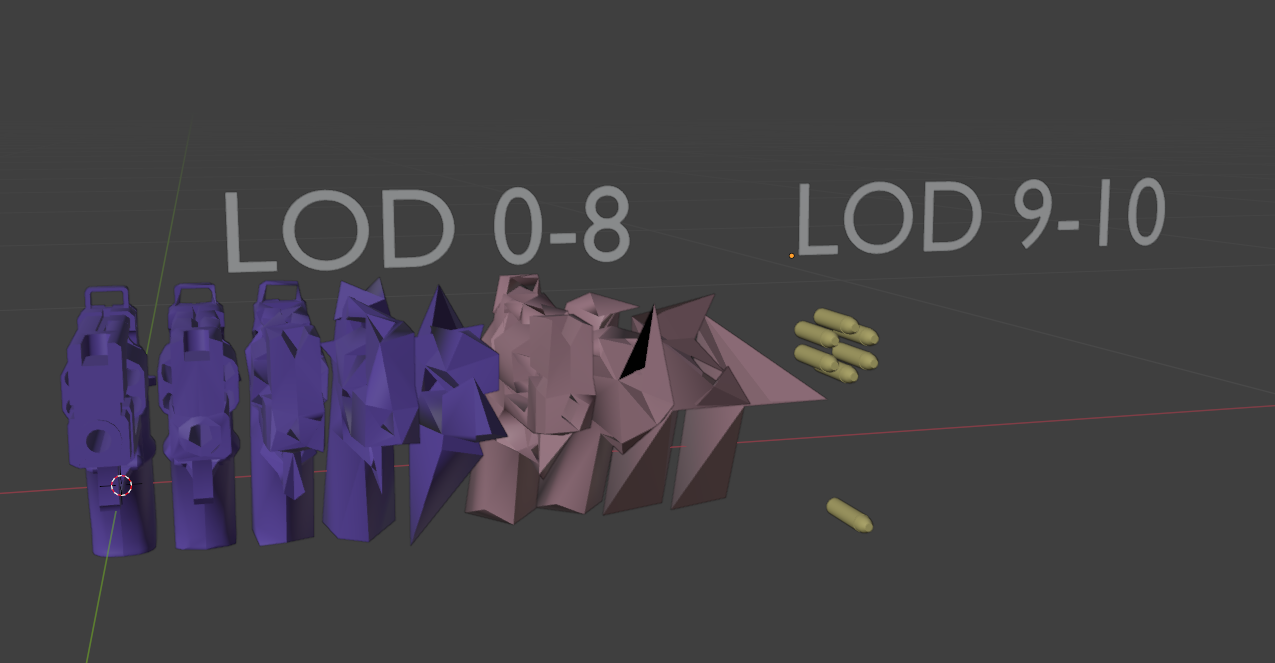
In order to properly change the Senator you will need to mod each of the LODs.
Import Group 0 Only
Imports only LOD0 of the mesh
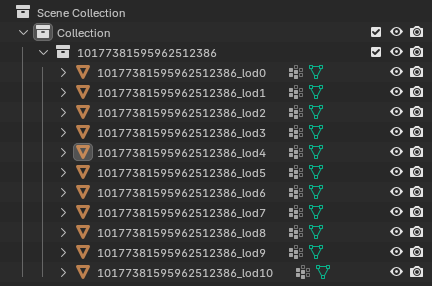
Make Collections
Each imported mesh ID will be imported with it's own collection in Blender
Import Culling Bounds
Imports the bounds of an mesh where if any part of the game screen can see it, the game will render it.
WARNING
Currently only works for a handful of meshes and is an incomplete feature
Import Static Meshes
Imports the static meshes of the mesh. Some meshs do not have any LODs and only static meshes.
There are some key differences between LODs and Static Meshes in HD2.
LODs will have a set amount of materials and will have specific vertex groups assigned to the armature.
Static Meshes can have an unlimited amount of materials and will be assigned to the root bone of any given armature.
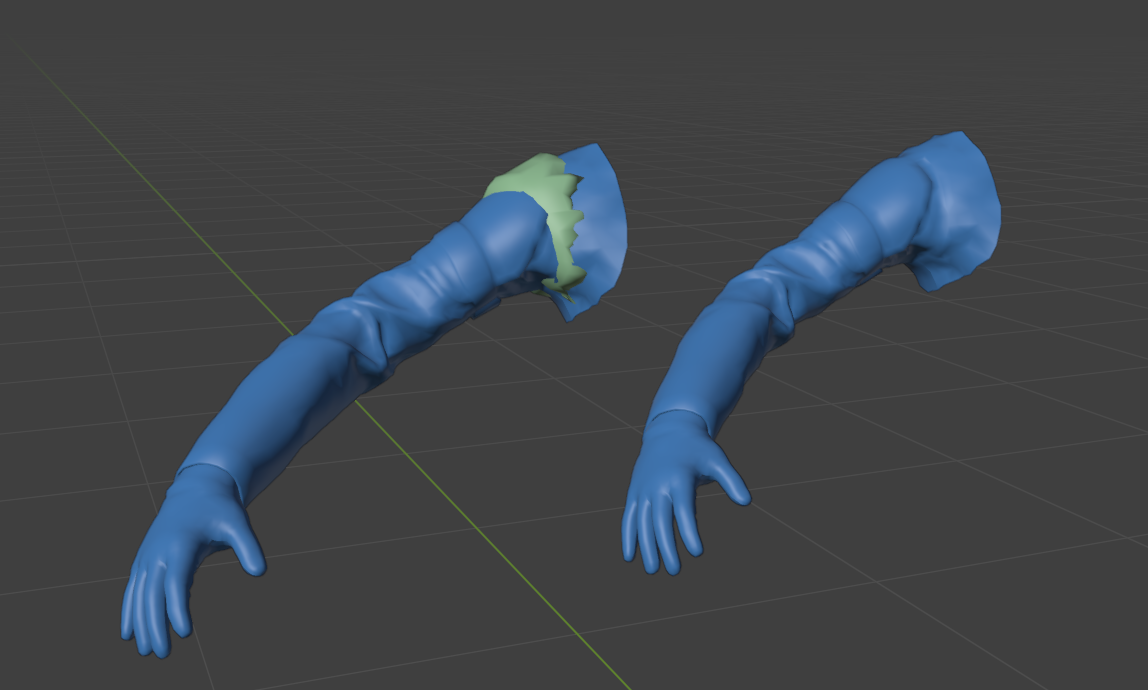
Remove Gore Meshes
Will remove the gore meshes from any imported HD2 armor sets.
INFO
At this current time, any modded armor that changes the mesh in any way will break the base game gibs. It is highly recommended to leave this setting on for newer modders as it will reduce the amount of headaches during the modding process.
Parent Armatures
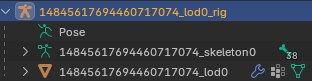
When importing a mesh and armature, will parent the mesh to the armature.
Import Armature
Choose whether or not to import the armature of a mesh.
Export Options
Force 3 UV Sets
Will duplicate the first UVMap of the saved mesh to the second and third UVMaps.
HD2 uses different UVMaps for different functions. This is only important if you plan on making a LUT based mod.
UVMap is the standard mapping of the textures onto the mesh
UVMap.001 is the gore size scalar
UVMap.002 is the decal texture atlas mapping
WARNING
If this setting is turned off and your mesh only has a single UVMap, the mesh will appear invisible in-game.
Force 1 Group
Forces the saved mesh to only have one vertex group.
This means that instead of having multiple vertex groups like 0_0 and 1_0, only 0_0 will be saved and the redundant 1_0 is ignored.
INFO
Vertex Groups beyond the vertex group 0_# have not been explored extensively. Currently we do not know what the purpose vertex group 1_# or 2_# serve and discarding them during the exporting process has no visible detrimental effects.
Auto LODs
Takes the saved mesh and applies it to all LODs of the saved mesh ID.
If you are modding an item that requires you to modify each individual LOD of the mesh, turn this setting off.
Save Bone Positions
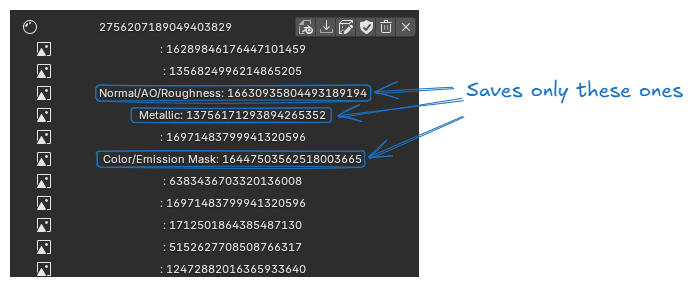
Save Textures with Material
When saving any material, choose whether or not to also save the coresponding textures to the patch.
Generate Randon Texture IDs
If the previous option is also enabled, saved textures will have new, randomly generated, unique IDs. Unique IDs are required to prevent textures from overriding each other because they have the same ID.
Save only Custom Textures
When textures are saved to patch, choose to only save textures that you are inputting and not base game textures.
Other Options
Save Non-SDK Materials
Saves any base game material into your patch file if it is currently applied to mesh.
This is useful for when you want to mod a base game asset to another mesh.
Save Unsaved on Write
Redundancy function keep enabled.
Autosave Mesh Materials
Any materials and textures that are applied to the mesh upon saving the mesh will automatically be saved to the patch file.
If you plan on having separate patch files for textures and meshes this is the function that would streamline your workflow.
Patch Base Archive Only
Automatically makes and patch file write to archive 9ba626afa44a3aa3.
There is no real reason to turn this off so keep enabled.
Legacy Weight Names
When importing units or saving units, choose whether or not to use the old system (0_1) or the new standard system (named bones). This is for creators who have made content prior to SDK 3.0 release and have not updated their units to use the standard system.
Merge Armatures
When importing multiple units, choose whether or not to merge all the armatures into a single armature. Primarily used for armor sets.
Data Location
Set the location of the HD2 Data folder in order to properly create patches for the game.

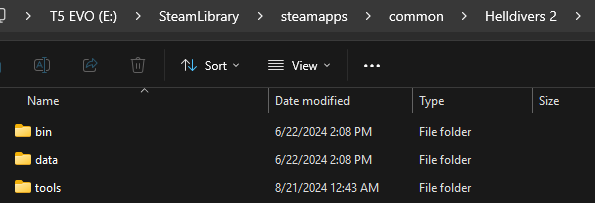
You can easily get to this location from the Steam Menu.
Find Helldivers 2 in your Steam Library
Right Click
Properties
Installed Files
Size of Installation: # GB on XXX Drive (Browse)