Rank Replacement
There are a variety of ranks in Helldivers 2.
Obtaining The Texture Atlas
Load the Rank Icon Archive 4c2203529ff1a9c4.
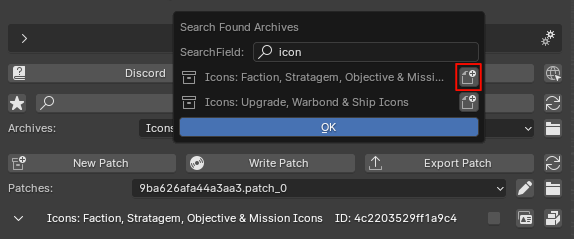
Select all of the texture entries, Right Click, and export as PNG.
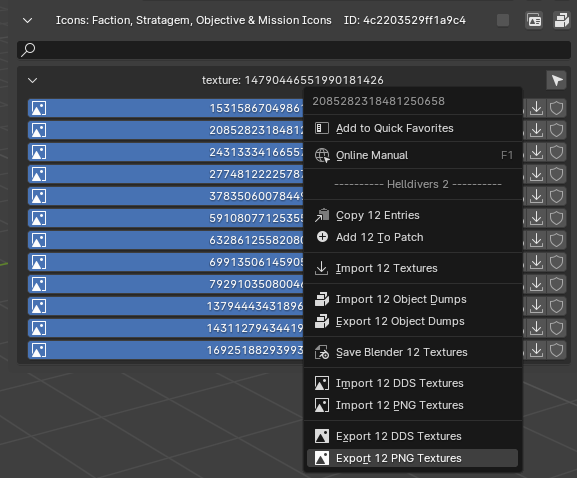
You'll have to sort through the exported PNG files and find which texture atlas has the rank icon you wish to replace.
Note the Entry ID of your texture.
Making Your RGB Mask
Your custom image can only have 2-3 colors depending on what rank you are replacing. The color that each appear as in-game will also be your replacement's color, and it cannot be changed. Note which color on the RGB Mask matches to what color in-game.
COLOR MATCHING
For the Super Pedestrian Rank Icon:
- Red Channel appears as yellow
- Green Channel appears as light gray
- Blue Channel appears as dark gray
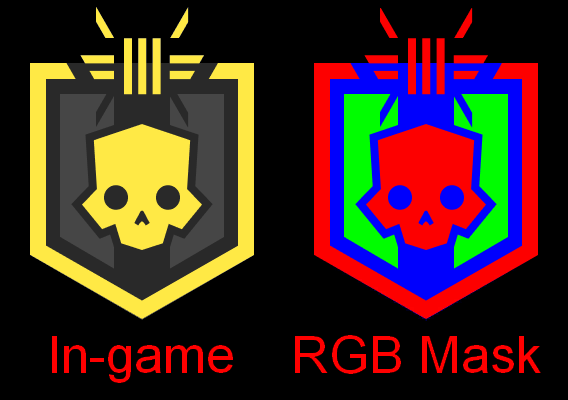
HD2 needs your icon to be an RGB Mask to properly read them, so make sure you use pure red, green, and blue as you convert your custom image into an RGB Mask.
| Reference Image | RGB Mask |
|---|---|
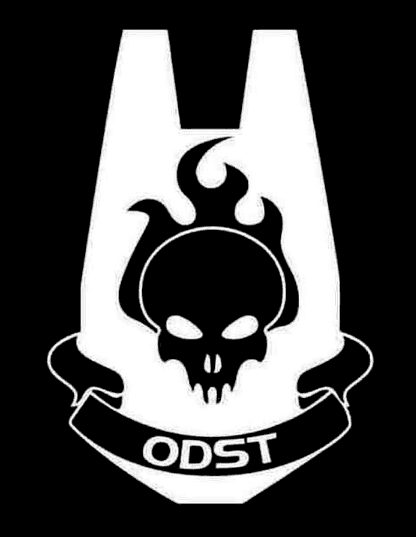 | 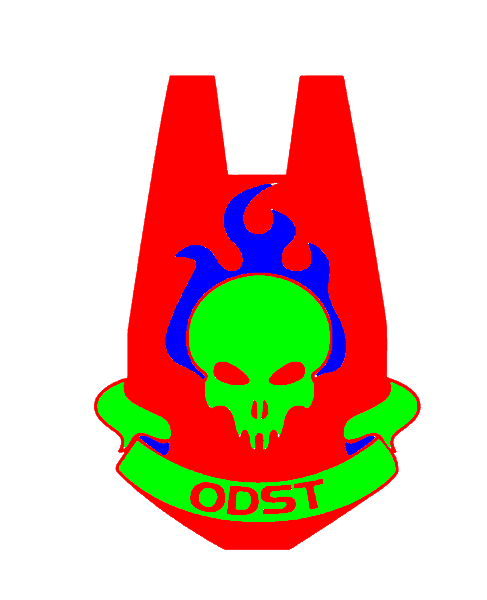 |
Modifying The Texture Atlas
IMPORTANT
If your texture atlas looks different from the one seen below, that is fine. New Updates and Warbonds will change this atlas texture and the icon arrangement.
This means that the texture will have to be updated every time the atlas texture is changed in a game update. Sadly, UI mods such as these break quite often so you'll likely have to reapply your custom rank icons to the newer atlas textures each game update that a new Warbond is added into the game files.
Once you have prepared your custom rank icon as a proper RGB Mask, we can add it to the texture atlas. We will need to replace two images on the texture atlas. One for the Warbond preview, and one that appears on the HUD.
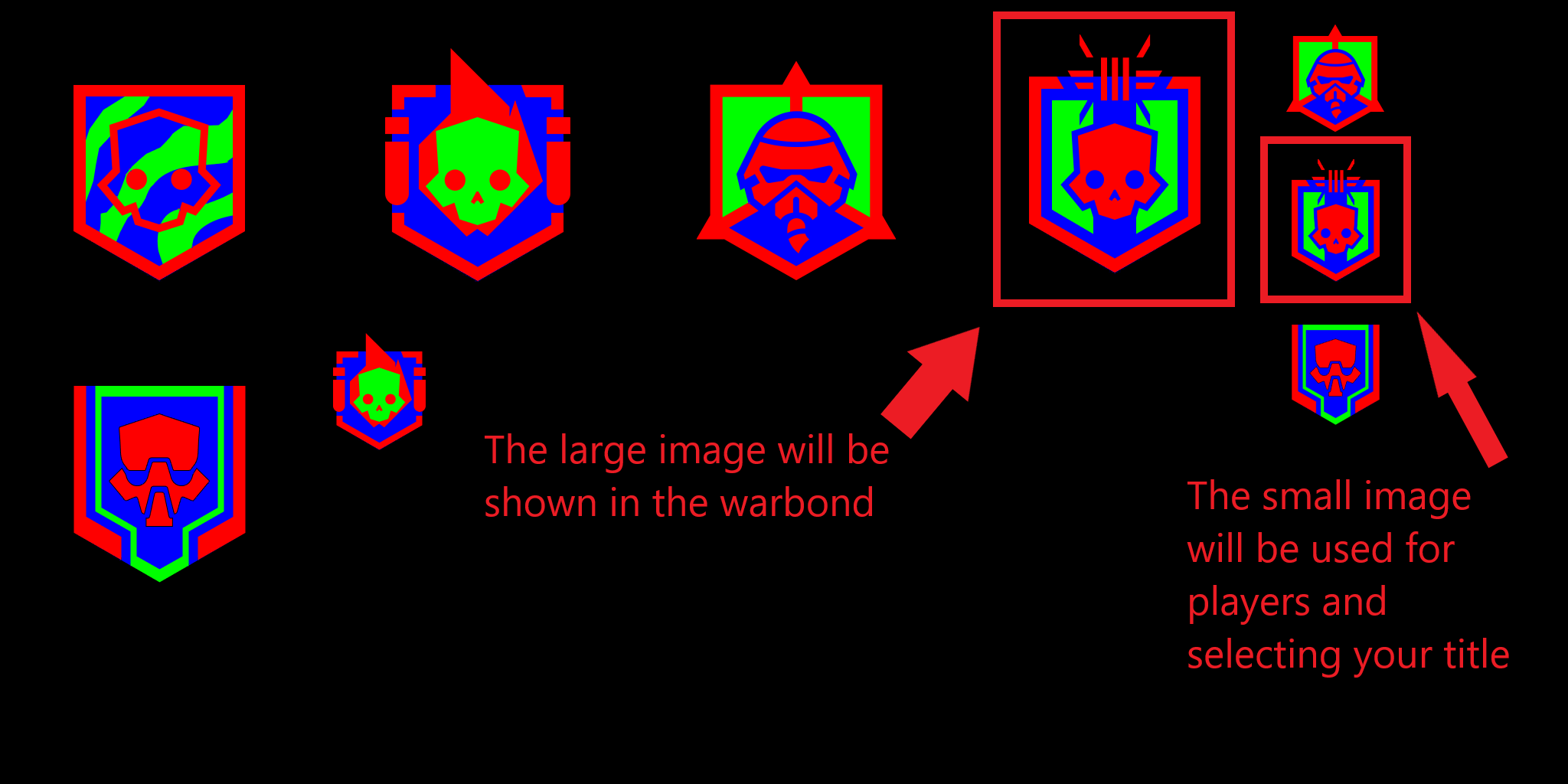
Your new image should be roughly the same size and be placed in the same spot as the old image, if it’s too big then the image will be cut off in-game.
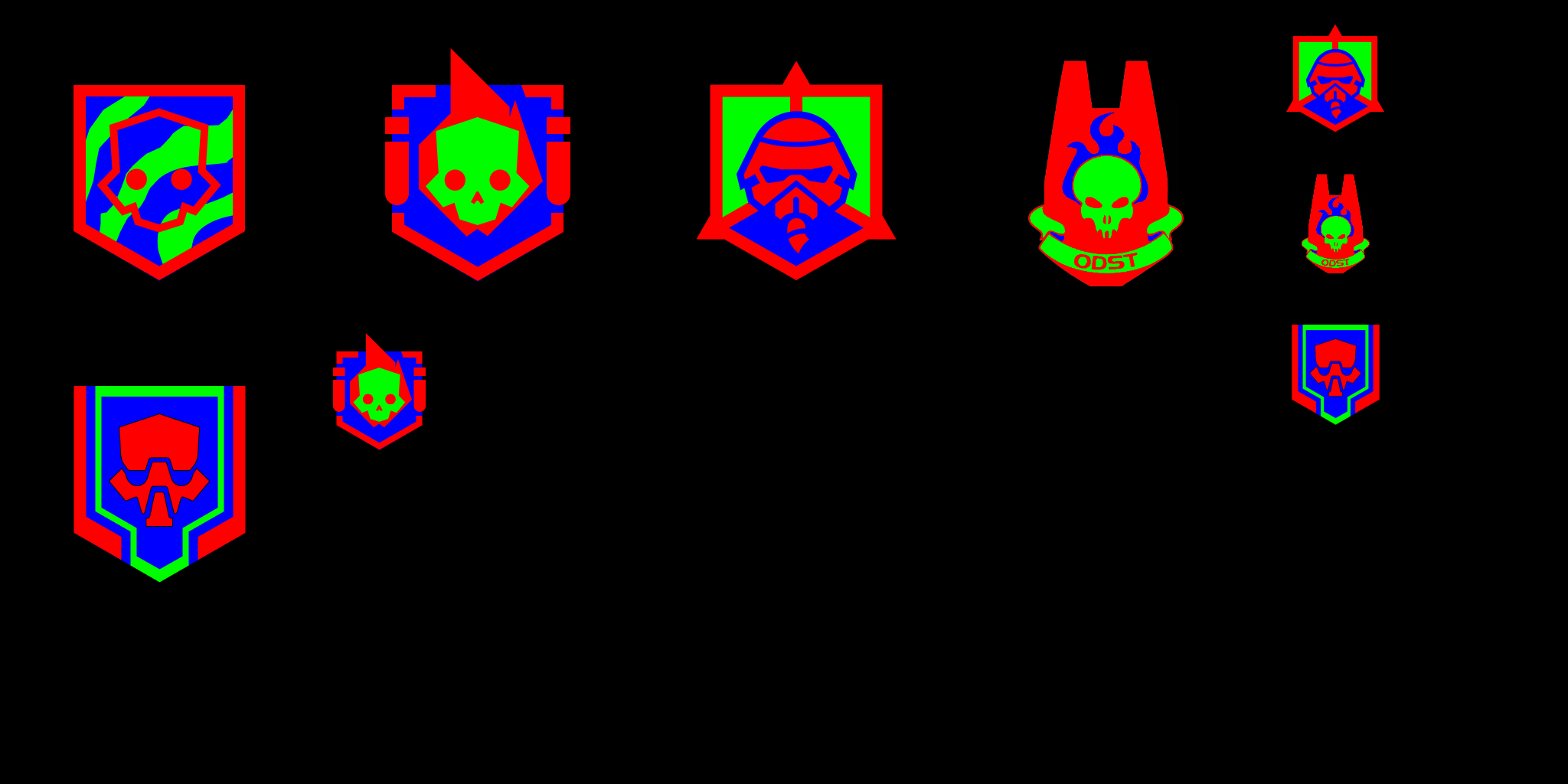
Replacing The Texture Atlas
Create a new patch if you haven't yet.
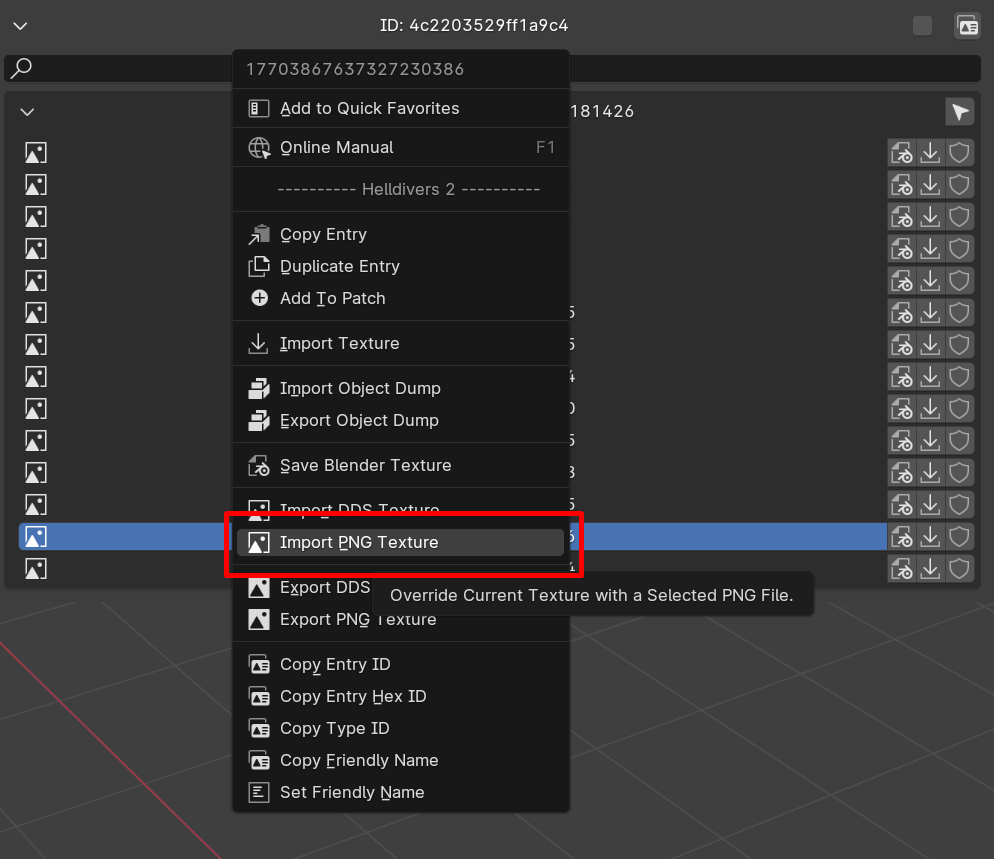
Select the texture entry with your noted Entry ID for the texture atlas you are modifying.
Right Click and import your modified PNG texture.
Write the patch and start the game.
Your custom rank icon should be working!
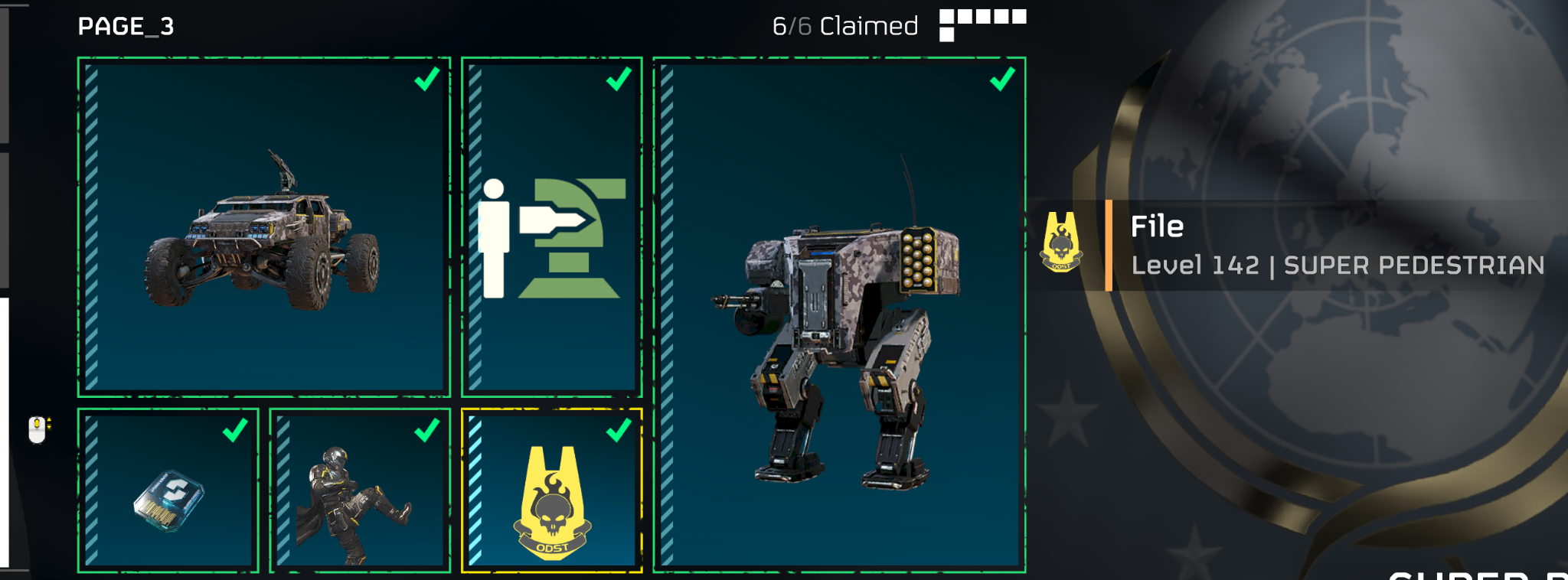
Changing The Rank Name
If you wish to also change the name of the rank along with the icon, you will have to modify the text.
See the Text Modding Guide on how to do that.