Jiggle Bones
WARNING
Currently, the SDK does not support adding custom jiggle bones to models. However, we can decently fake the effect using existing bones on the Helldiver player rig.
This guide assumes you understand the Helldivers 2 modding process and have a armor set already created and working in-game as depicted in the Armor Replacement Guide.
Setting Up The Rig
INFO
If your armor is already using the Helldiver Avatar rig, you may skip this step.
Load the Super Destroyer Interior 2 Archive: 18235e0c9ec0e636 and import the Helldiver Avatar unit 5556372446766824087.
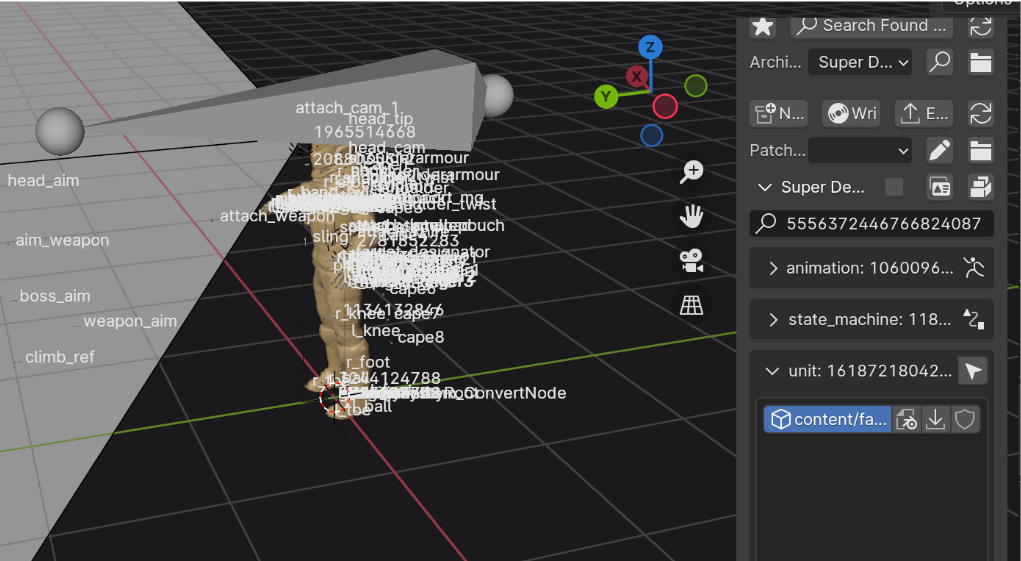
Delete any lights and meshes attached to the Avatar rig, these are unnecessary, we just need the armature itself.
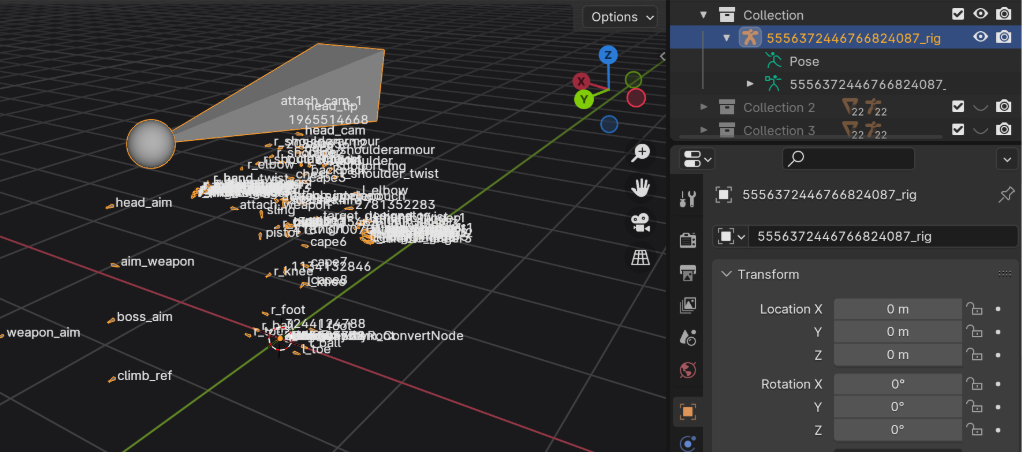
Next, select your custom model and then the armature and parent your custom model to the rig with Ctrl + P > Object. Now the custom model should be a child object.
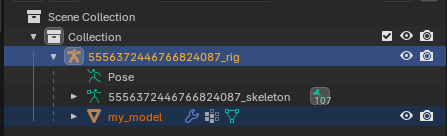
Select your custom model and add an armature modifier and select the rig as the Object.
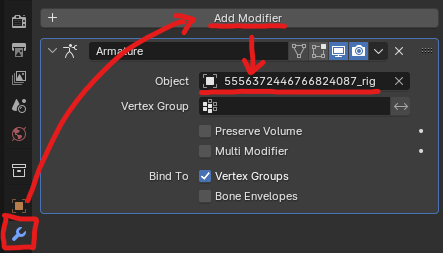
This now allows us to use any vertex group of the Avatar rig to weight our custom model.
The Jiggle Bones
The Helldiver Avatar rig has a variety of bones in it that are jiggle bones. Here is a list of them, what they are good for and what bone is their parent:
Works well overall (Chest Bone)
support_mgsupport
Works well with lower body (Spine1 Bone)
attach_intelpadattach_samplepouch
Only moves horizontally (Spine1 Bone)
target_designator
Moves irratically (Spine2 Bone)
sling
Feel free to play around with these different bones by just changing the name of the vertex group after you go through this guide. Using multiple jiggle bones at once is an option too! Be sure to keep in mind which bones are the parents of jiggle bones as that may influence your choice of which bone to use.
Weighting Your Model
In this example, we will be using the support_mg bone as it shows good results on models.
You will either want to create a new vertex group named support_mg or simply rename an existing vertex group on your custom model if an area of the model is already weight painted to jiggle.
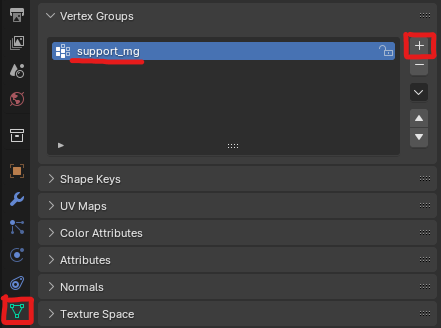
Combining Vertex Groups
If you have multiple existing vertex groups that you want to jiggle with the same bone, they will need to be combined into a single group we can assign the support_mg name. We can do this via a VertexWeightMix modifier.
Add a VertexWeightMix modifier to your model and select the groups you wish to combine, assuring that the Mix Mode is set to Add. This will add all of the weights from group B onto group A.
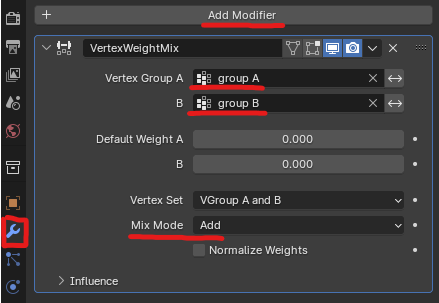
Make sure to apply the modifier when you are finished.

The old group B vertex group is now redundant so you can select and delete it if you wish.
We can now name our vertex group support_mg if it is not already named such.
Getting Weights Right
The real magic of the craft is balancing the jiggle weights across multiple vertex groups. For good results, we wont want the jiggling area to be weighted 100% to the support_mg group.
Depending on what we want to jiggle, the area should also be weighted to an actual part of the skeleton such as the chest, spine, head, etc. which we call an anchor group.
If the jiggle area is only weighted to a single group, we can duplicate the vertex group and then combine the vertex group with another existing anchor group.
Now that we have our jiggle group and anchor group ready, it is time to tweak the weight values for each.
We'll start with our anchor group completely weighted to the jiggle area at a value of 1.0 (full red on left). The jiggle group however, should have a relatively lower weight (orange on right) which we will increase or decrease depending on the desired severity of the effect.
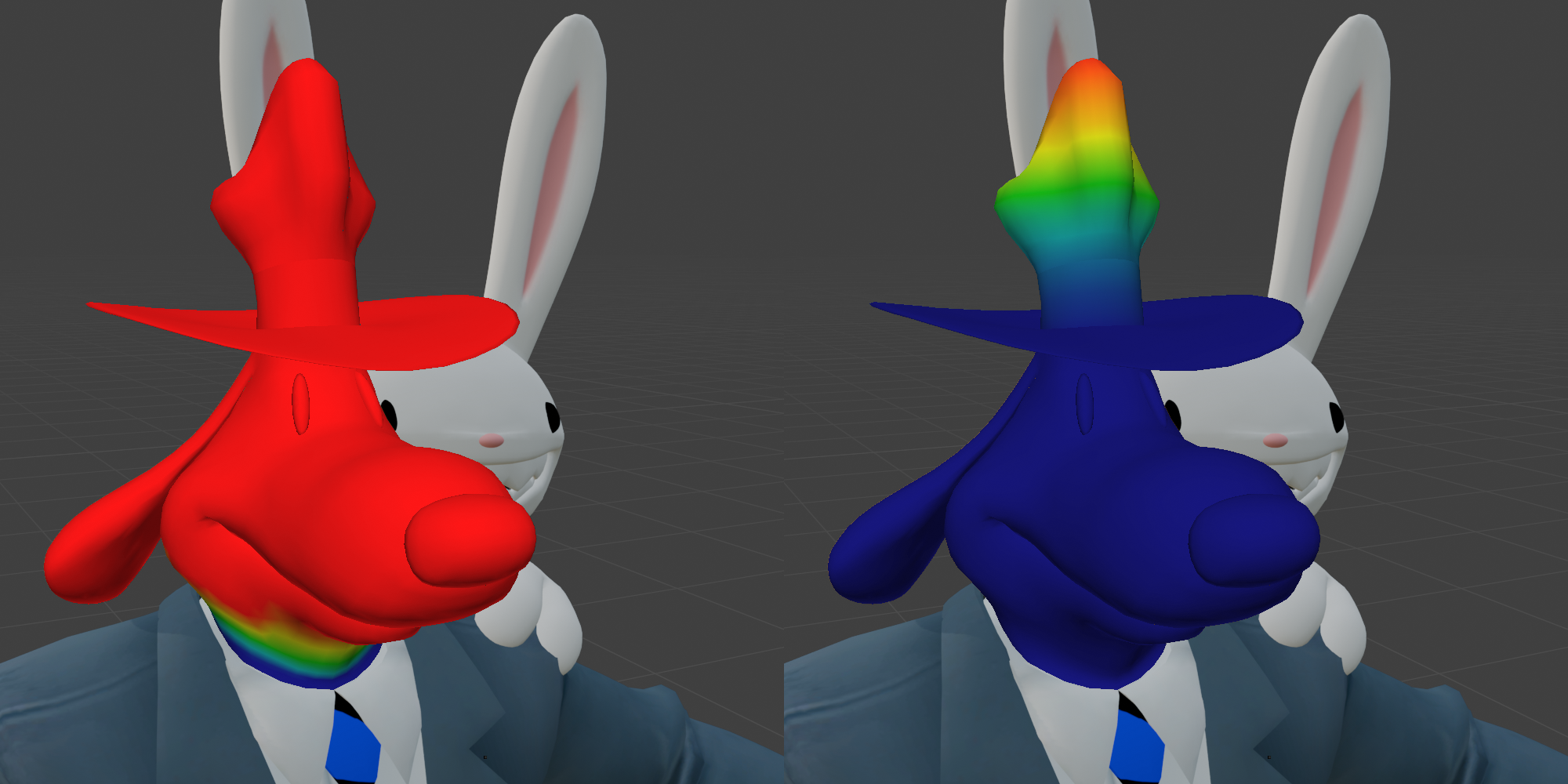
INFO
Notice how it is completely fine to have our anchor group be weighted to more of the model. The jiggle group can be just a small section of the anchor group's area that we wish to jiggle.
An easy trick to adjust the value of the jiggle group's weight is using another VertexWeightMix modifier. By setting both groups to our jiggle group and the Vertex Set to All we can set the Mix Mode to Addor Subtract depending on if we want to increase or decrease the weight of the group. Then we can change the severity of the modifier using the Global Influence slider.
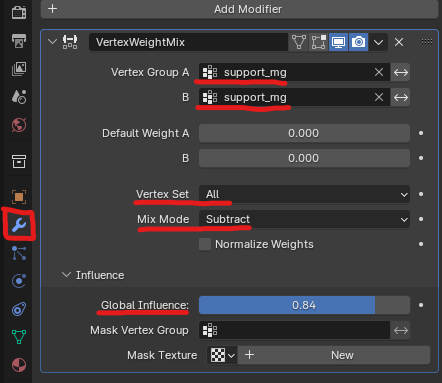
Make sure to apply the modifier when you are finished.
Save the unit and write your patch once you are happy with the weights.
Now your model has jiggle bones!